
Step 1 — Enter Your Eduroam Login Information
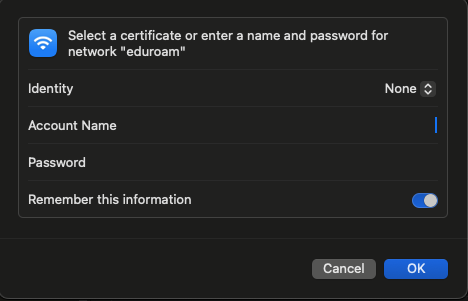
When you select eduroam from the Wi‑Fi menu, your Mac will display a login window with the following fields:
Identity
- Set this to None
Account Name
Enter your full PSI email address:
yourusername@psi.edu
Password
Enter your PSI account password.
Remember this information
Toggle this on so your Mac automatically reconnects next time.
After filling in the fields, click OK to continue.
Step 2 — Verify the Eduroam Certificate
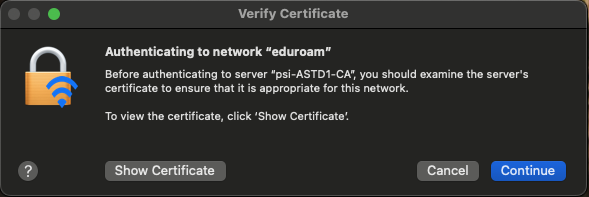
After entering your PSI email and password, your Mac will display a Verify Certificate window. This is expected behavior for Eduroam.
You’ll see a message indicating that your Mac is authenticating to the network and asking you to review the server certificate.
What you should see
The server name should appear as psi-ASTD1-CA (PSI’s authentication server).
This confirms you are connecting to the correct Eduroam infrastructure.
What to do
You may click Show Certificate if you want to review details.
Click Continue to proceed.
This step ensures your Mac trusts PSI’s secure authentication server before completing the connection.
Step 3 — Approve Certificate Trust Settings
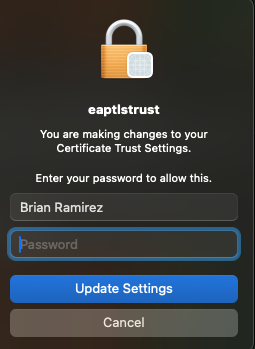
After you click Continue on the certificate verification screen, your Mac may display a system prompt asking for permission to update certificate trust settings.
This prompt confirms that macOS is adding PSI’s Eduroam certificate to your trusted system keychain.
What to do
Enter your Mac login password (This is the password you use to sign in to your Mac, not your PSI password.)
Click Update Settings
Once approved, macOS will store the certificate so you won’t be prompted again on future connections.
Troubleshooting Eduroam Connection
If you entered the wrong username, password, or clicked the wrong certificate option, macOS may keep failing to connect. The quickest fix is to remove the saved Eduroam connection and start fresh.
1. Open System Settings
Click the Apple menu → System Settings.
2. Go to Wi‑Fi
Select Wi‑Fi from the left sidebar.
3. Find the Eduroam network
Next to eduroam, click the small Details button.
4. Forget the network
At the bottom of the window, click:
Forget This Network
Confirm when prompted.
5. Reconnect
Return to the Wi‑Fi menu and select eduroam again. Follow Step 1 to re‑enter:
Identity: None
Account Name: yourusername@psi.edu
Password: your PSI password
Remember this information: On
This guide applies to macOS Ventura (13), Sonoma (14), and Sequoia (15), including version 15.7.4. If you are using macOS Monterey (12) or earlier, your screens may look different.