
Step 1 — Select the Eduroam Network
Click the Wi‑Fi icon in the taskbar. Choose Eduroam from the list of available networks and click Connect.
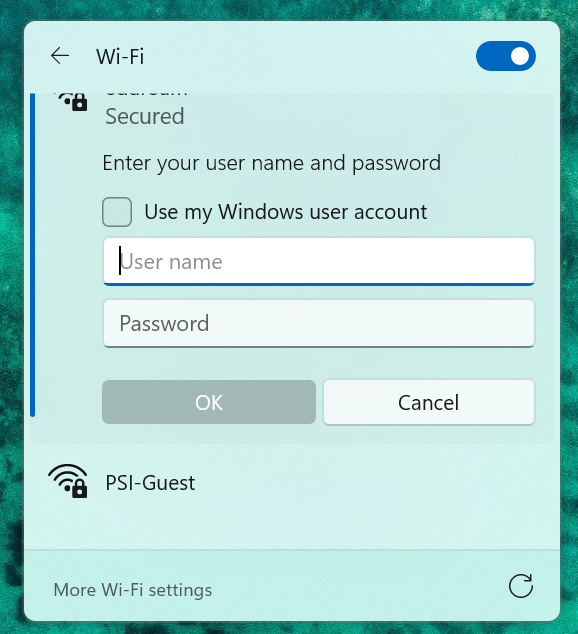
Step 2 — Enter Your PSI Credentials
You will see a login window prompting for a username and password
Enter the following:
User name:
yourusername@psi.eduPassword: Your PSI network password
Make sure “Use my Windows user account” is unchecked.
Click OK to continue.
Step 3 — Confirm the Eduroam Certificate
Windows will display a security prompt asking whether you want to continue connecting
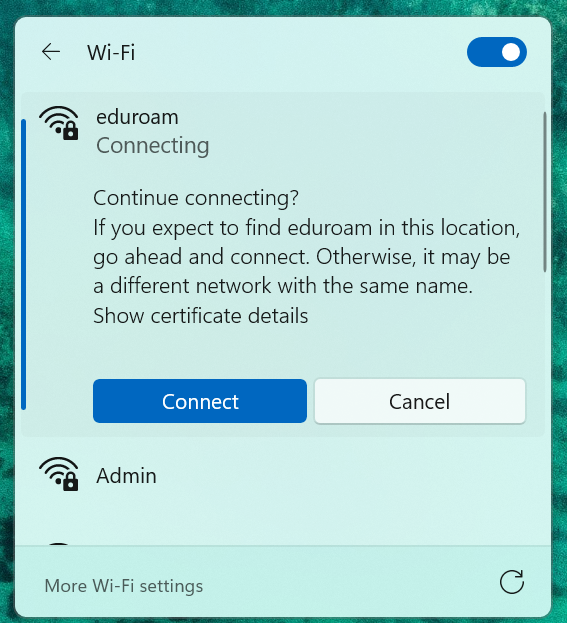
This is expected the first time you join Eduroam.
What to do:
Review the message
Click Connect
If you want to inspect the certificate, you may click Show certificate details, but this is optional.
Step 4 — You’re Connected
Windows will authenticate your credentials and connect to Eduroam. You should now see Connected, secured under the Eduroam network.
Troubleshooting
1. Windows keeps asking for your password
This usually means cached credentials are incorrect.
To fix:
Open Settings → Network & Internet → Wi‑Fi
Click Manage known networks
Select Eduroam
Click Forget
Reconnect using the steps above
2. Incorrect username format
Eduroam requires the full identity:
yourusername@psi.edu
Entering only the username (without @psi.edu) will fail.
3. Certificate warnings keep appearing
This can happen if:
The device clock is incorrect
The previous Eduroam profile is corrupted
The certificate was not accepted during the first connection attempt
Fix:
Forget the network
Reconnect and click Connect when prompted to trust the certificate
4. Still not connecting?
Try restarting the Wi‑Fi adapter:
Open Settings → Network & Internet → Advanced network settings
Choose Disable next to your Wi‑Fi adapter
Wait 5 seconds
Click Enable
Reconnect to Eduroam